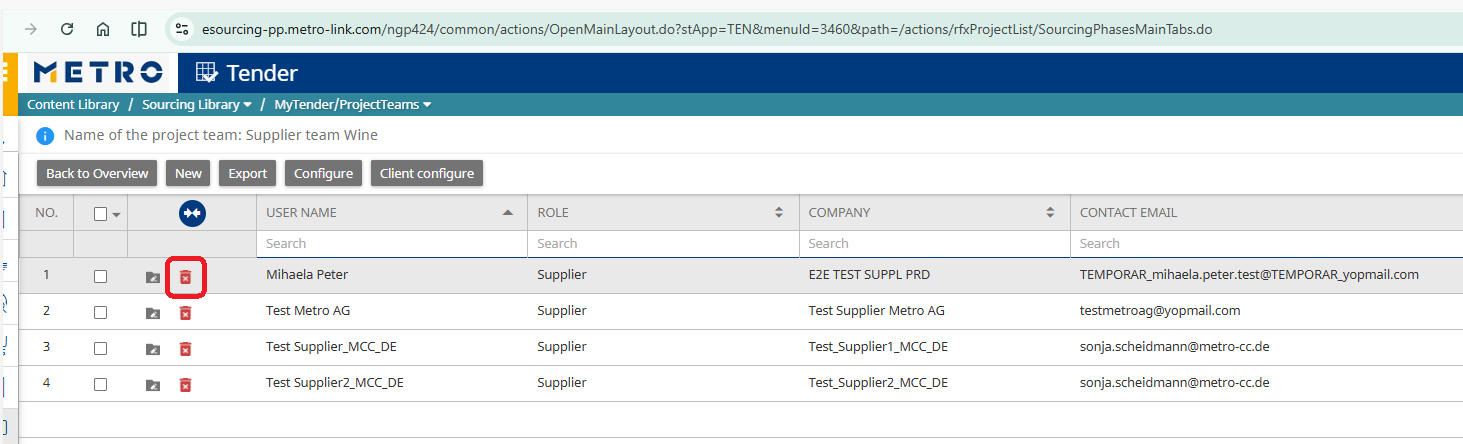
To speed up project setup and avoid inviting users or suppliers one by one, you can create reusable project teams and supplier teams directly from a project or from the Sourcing Library.
This guide explains all three methods step‑by‑step.
This guide explains all three methods step‑by‑step.
1. Saving a Project Team (Buyers/Internal Users) — From Inside a Project
Steps:
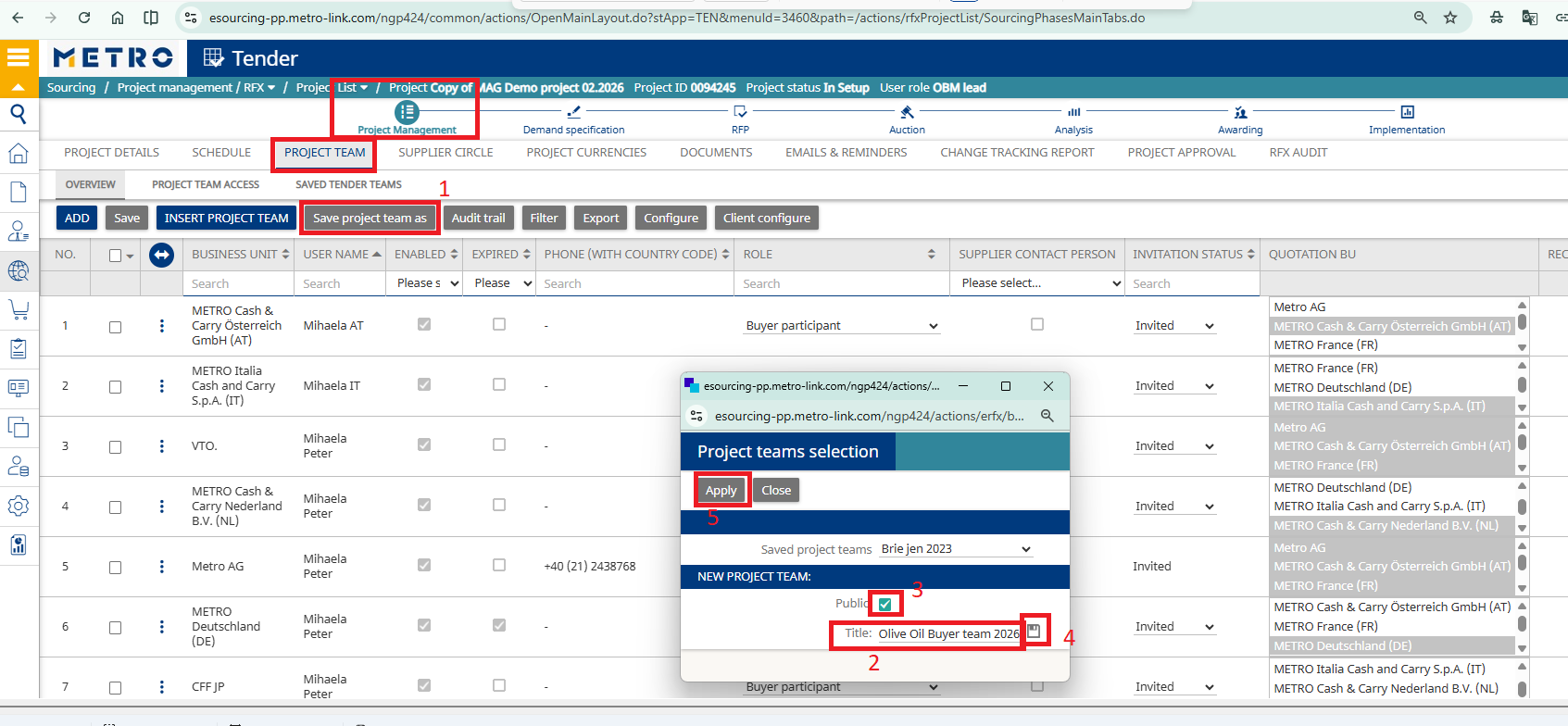
- After inviting all buyers/internal users to your project team, click Save project team as.
- Enter a Team Name (Title).
- Set the visibility to Public.
- Click Save and Apply.
How to reuse this team in a future project:
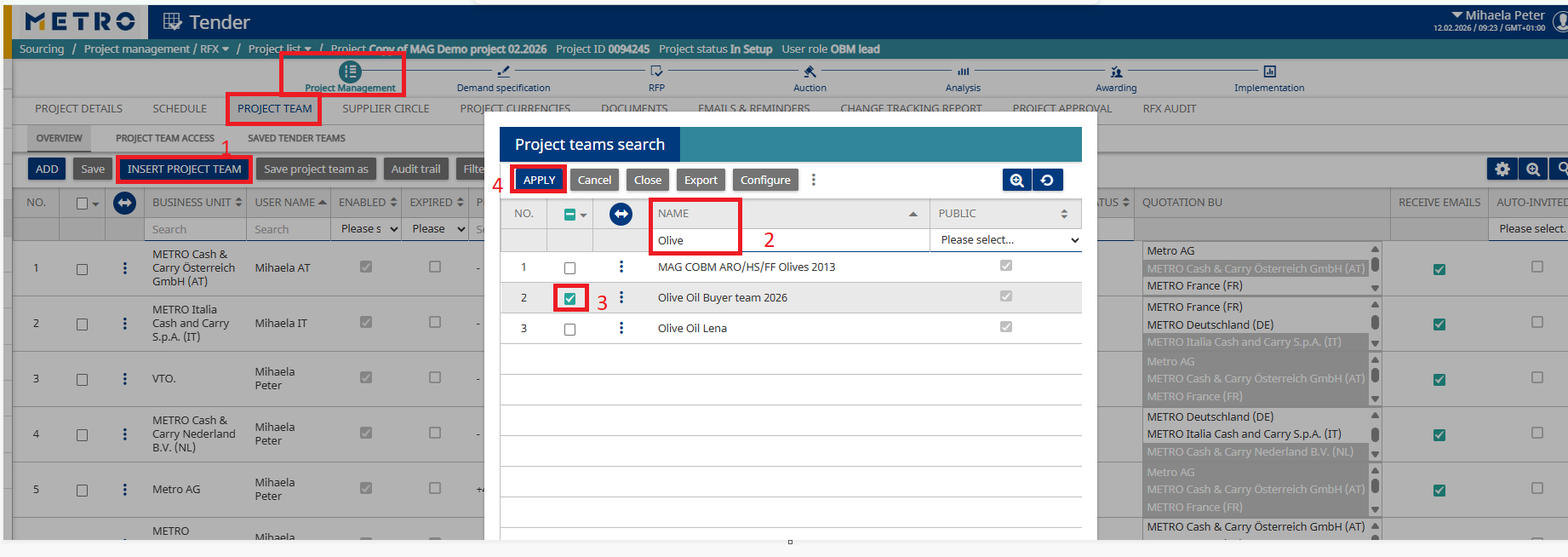
- Go to the new project.
- Select Insert project team.
- Search for the previously saved team.
- Select it and apply.
Note: You can still adjust the team after inserting it — add or remove internal users as needed.
2. Saving a Supplier Team — From Inside a Project
Steps:
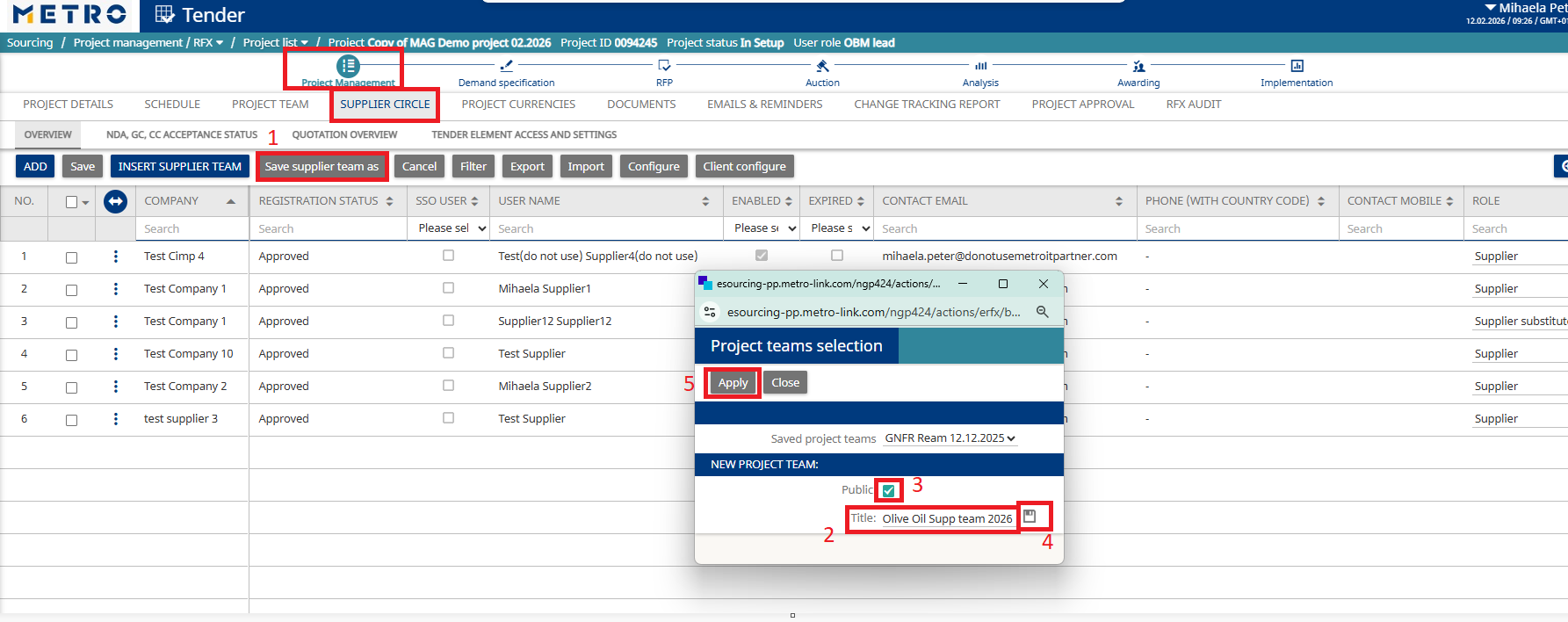
- After inviting all suppliers to the project (supplier circle), click Save supplier team as.
- Enter a Team Name (Title).
- Set the visibility to Public.
- Click Save and Apply.
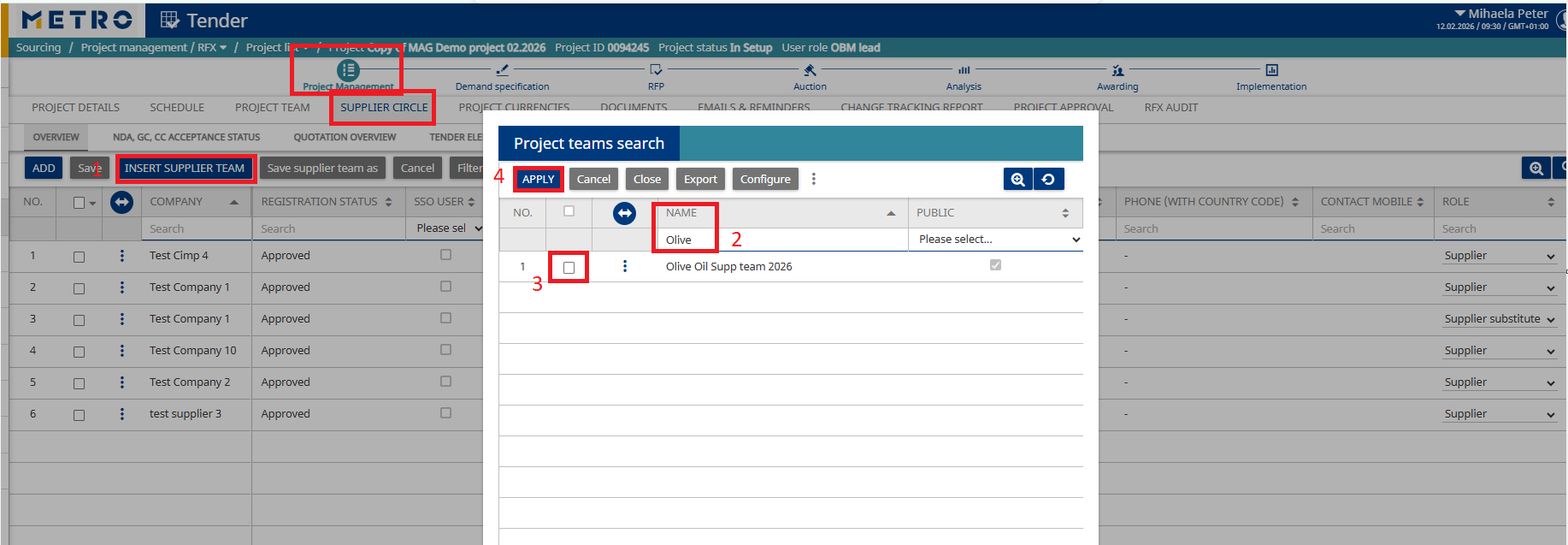
How to reuse this supplier team in a future project:
- In the new project, select Insert project team.
- Search for the saved supplier team.
- Select it and apply.
Note: You can customize the supplier list anytime — remove or add suppliers whenever necessary.
3. Creating a Project or Supplier Team in the Sourcing Library (Outside a Project)
Steps:
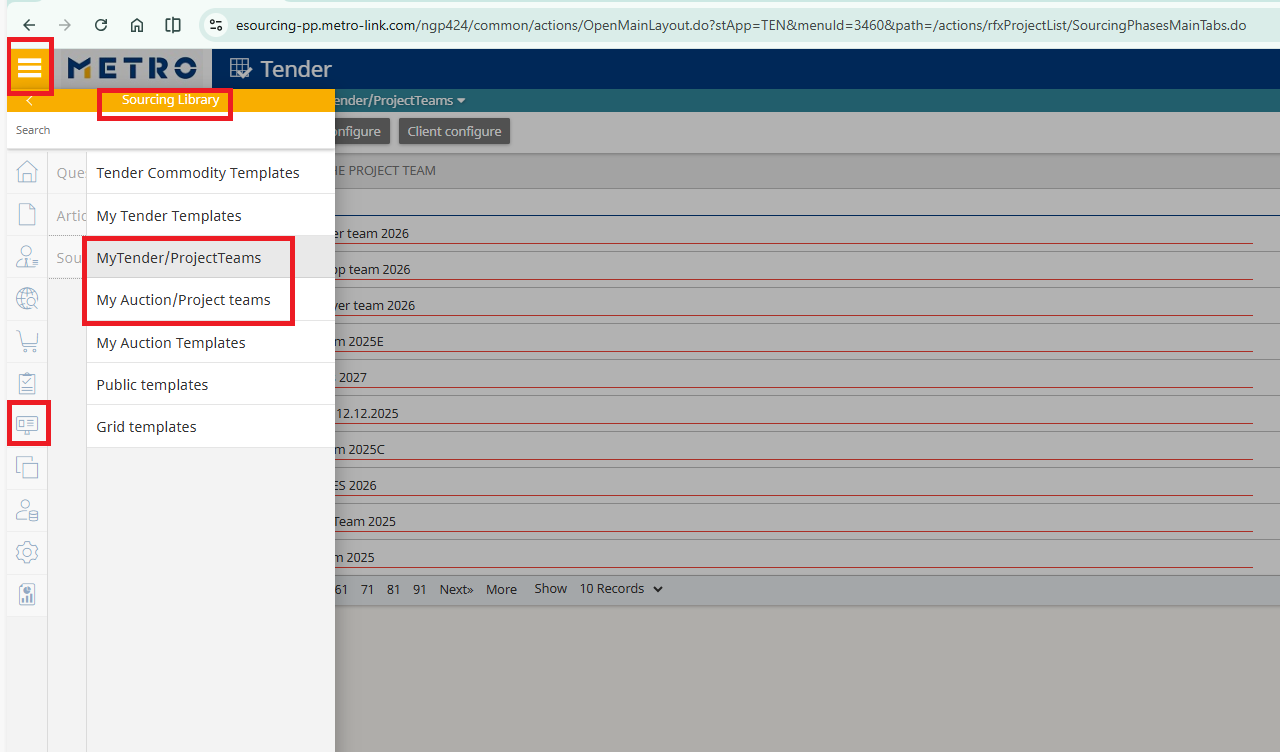
- Go to Content Library → Sourcing Library.
- Depending on what you need, select:
- My Tenders / Project Teams, or
- My Auctions / Project Teams.
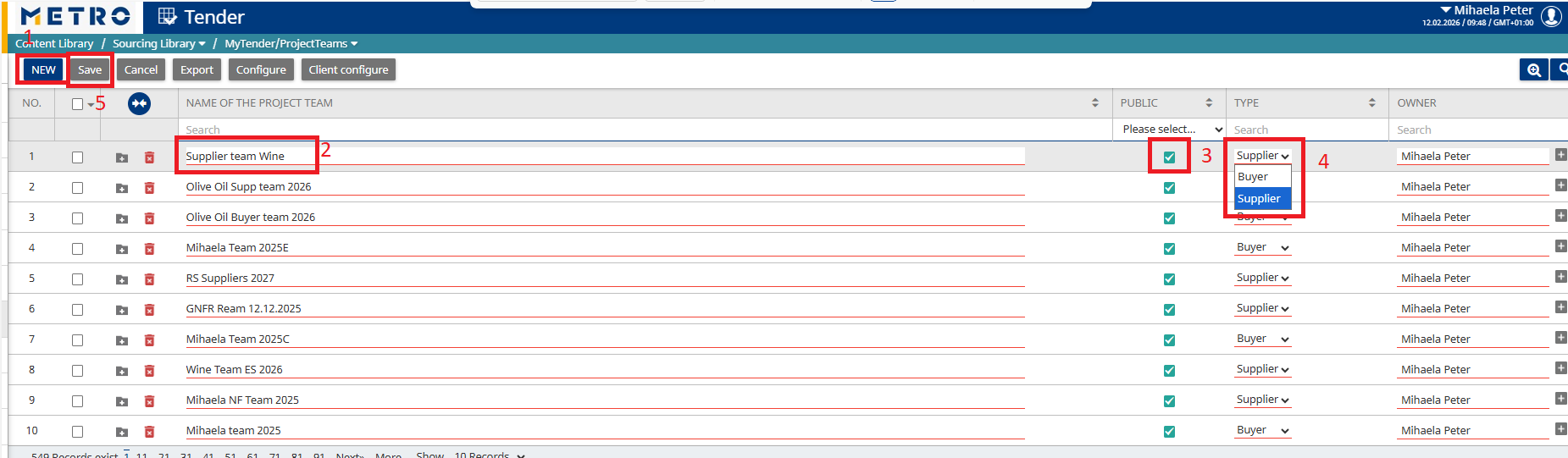
- Click New to create a new team.
- Enter a Team Name, set it to Public, choose the Type (Buyer or Supplier), and click Save.
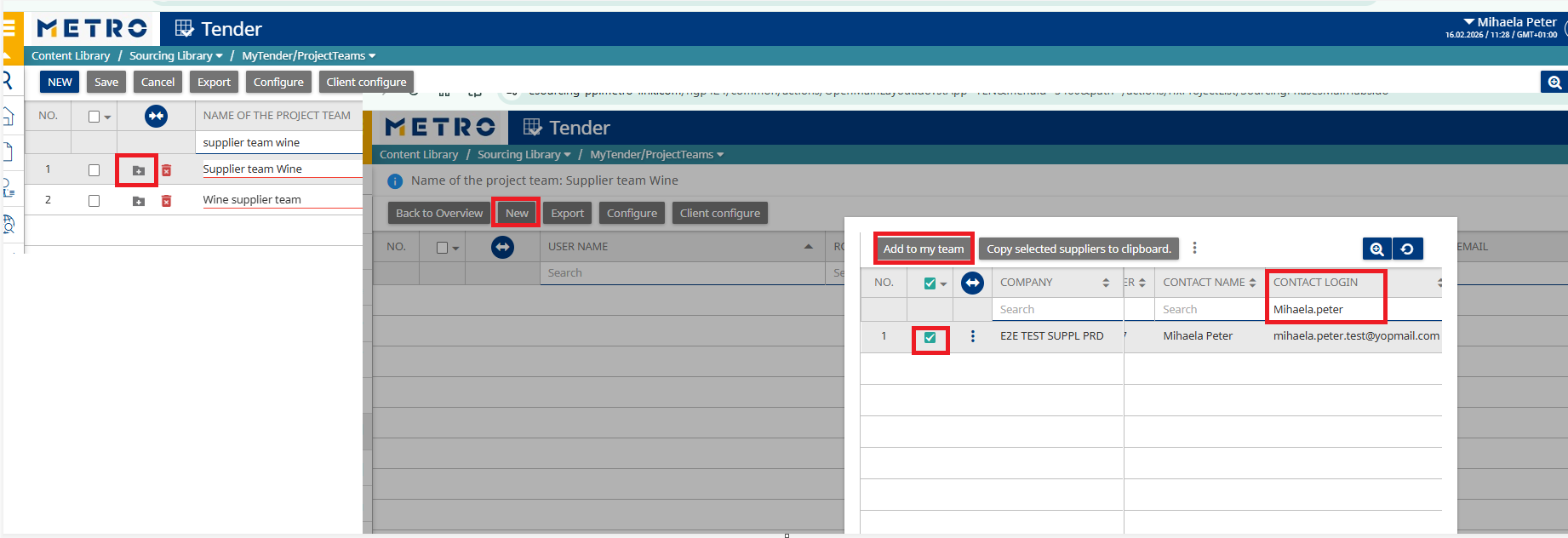
- Click Open, then click New to start adding members.
- Search and add the users (buyers or suppliers) you want in this team.
- If you are creating a buyer team, click Edit after adding users and update their roles as required
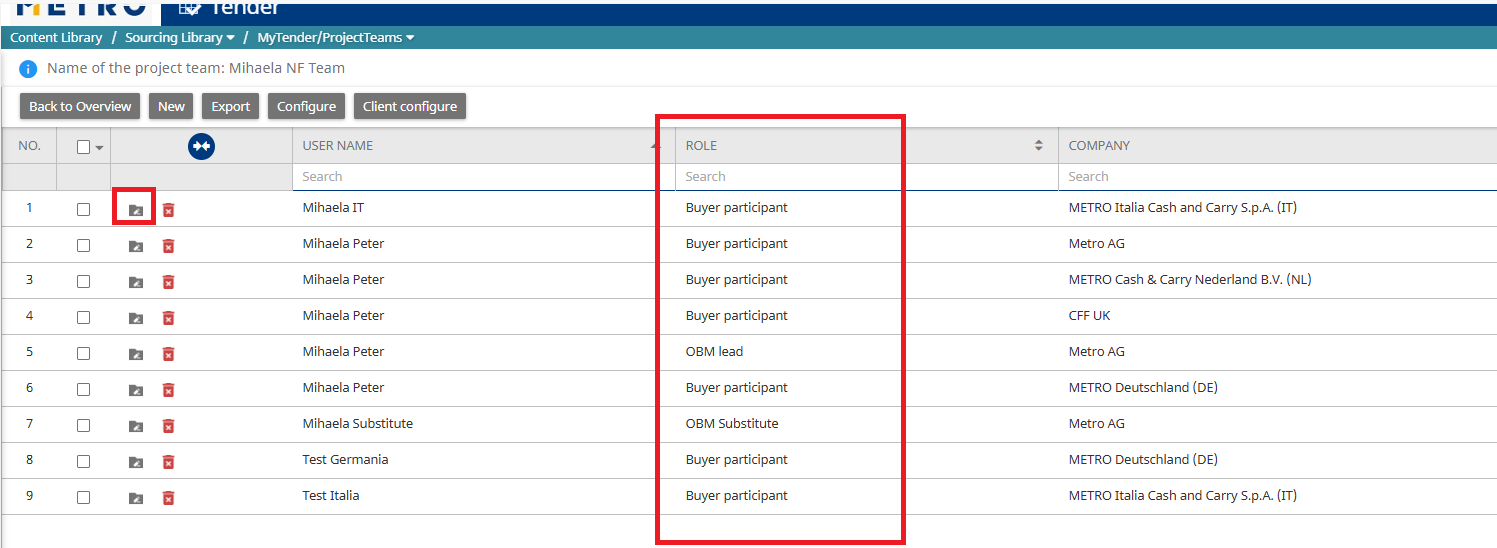
Note: You can open and update any team at any time — Invite new members, edit roles or remove members as needed.