
This guide provides a complete, step‑by‑step walkthrough for creating a new project RFP and, when needed, an Auction by using the RFP–Auction template within the eSourcing platform.
It is recommended for GNFR (Goods Not for Resale) buyers who manage procurement and negotiations for items and services used internally by the company. GNFR includes all goods and services that support business operations but are not intended for resale. This covers both tangible products as well as a wide range of services such as painting, cleaning, construction, and other operational support activities.
Prerequisites:
Before you begin, make sure you have:
Access to the eSourcing platform
➡ See how to request eSourcing accessRequired supplier details
➡ Learn how to onboard suppliers and grant them eSourcing accessGeneral Conditions (GC) documents
➡ View examples and drafts of GC documents
Step-by-Step Process
1. Create the Project
- From the Menu, navigate to:
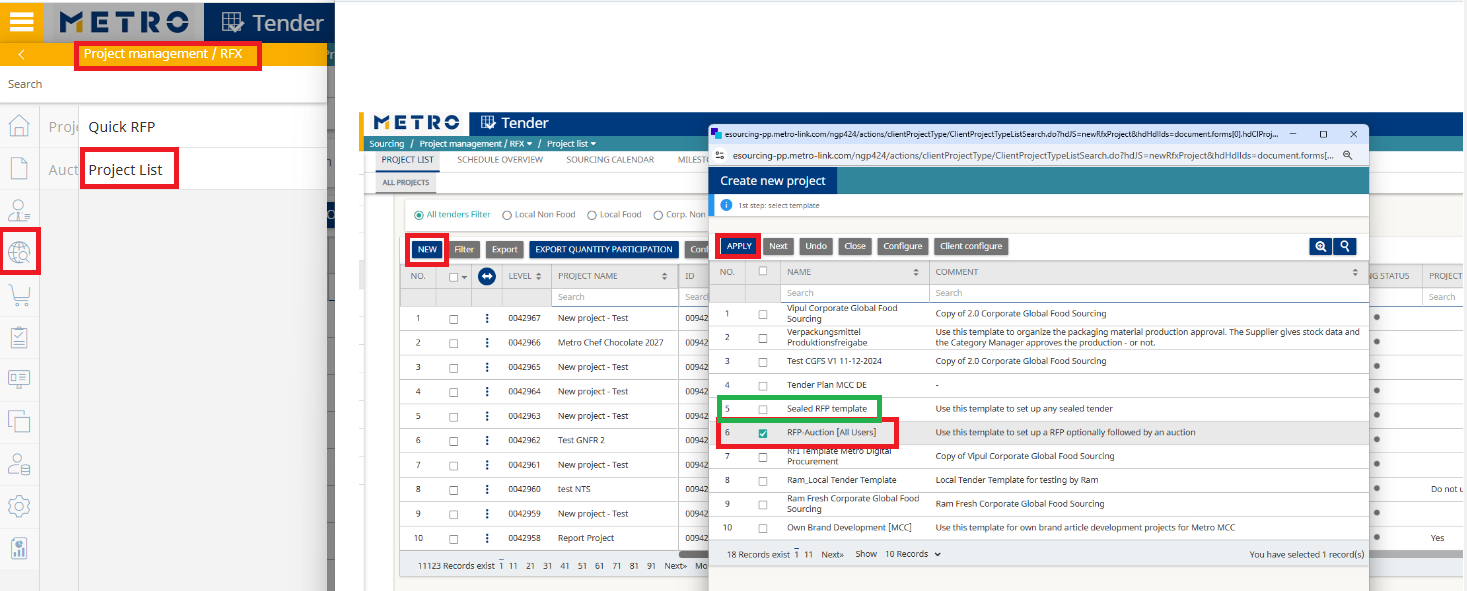
Sourcing → Project Management → RFX → Project List - Click New to create a new project.
- Search and select the template RFP-Auction [All Users], then click Apply.
- Note: You may also use the Sealed RFP template. The setup and structure are identical.
The only difference is that in a Sealed RFP, the buyer can view suppliers’ prices only after the tender is closed, and not during the online status.
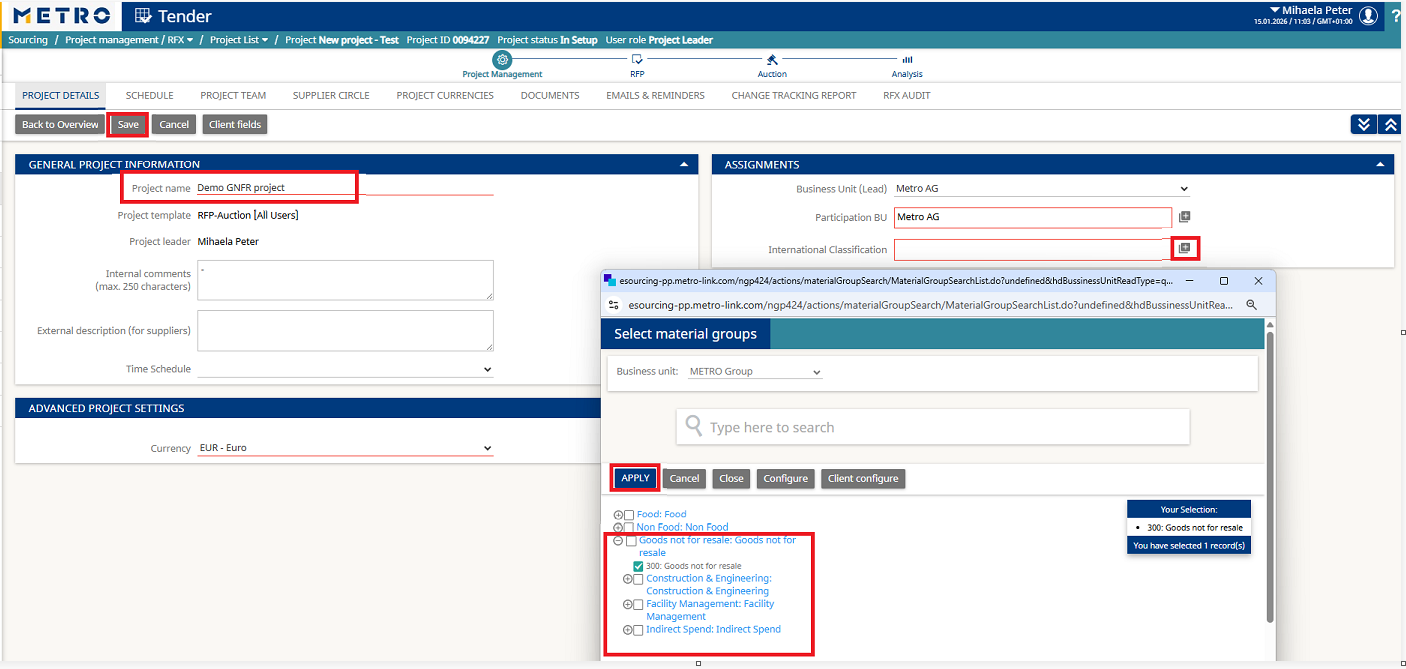
- Define the Project Name.
- Select the International Classification by clicking the “+” icon, then search and select the corresponding category.
- Click Apply to confirm and Save.
2. Create the Project Team
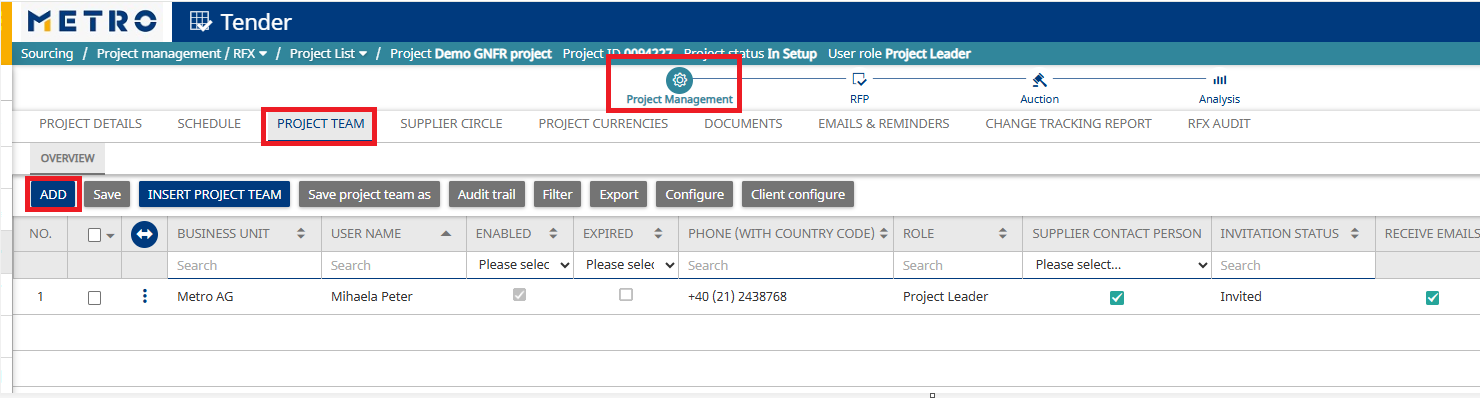
- Navigate to Project Team and click Add to invite colleagues from your country and internal users who need access to the project.
(Note: They must have an eSourcing account.)
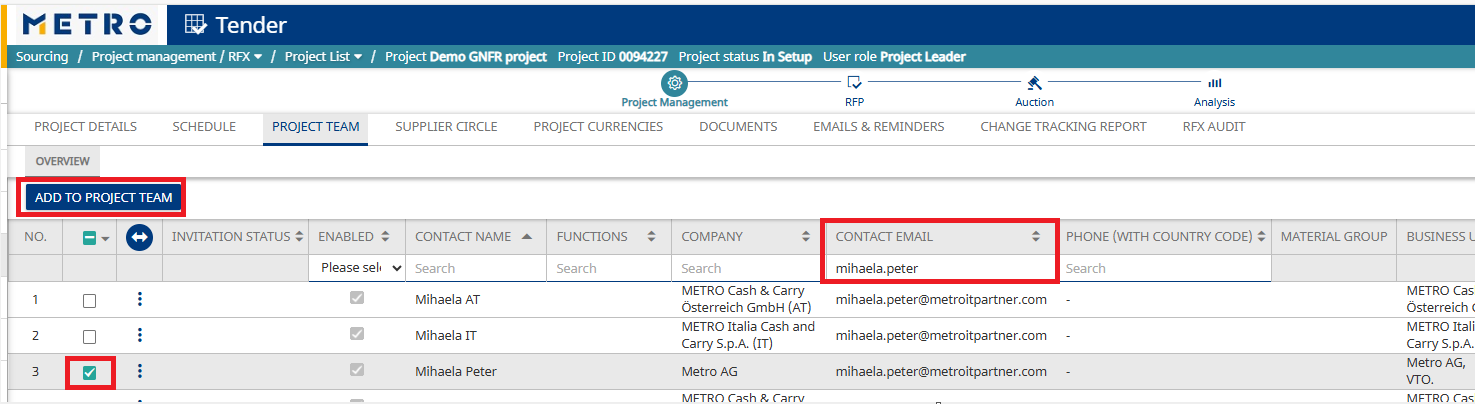
- Search for the user, select them, and click Add to Project Team.
- In the popup window, assign the appropriate Role and click Apply.
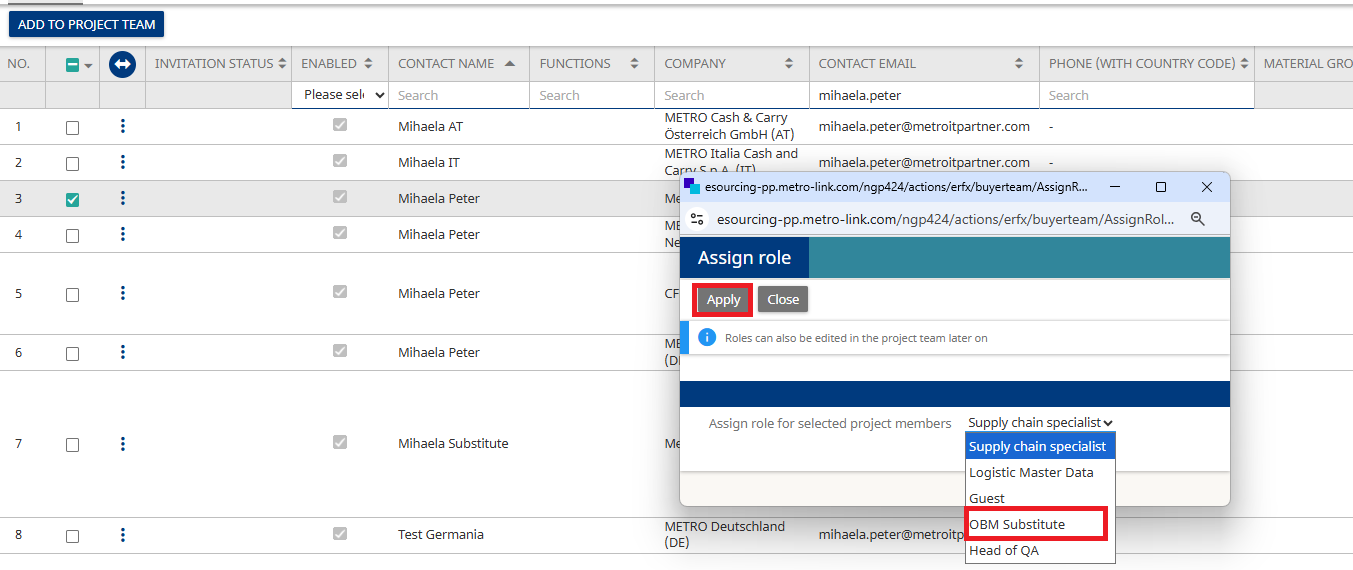
Common Roles:
- OBM Lead: You, the project leader who created the project.
- OBM Substitute: same rights as the project leader; assign to a colleague who can replace you.
- Guest: View-only access.
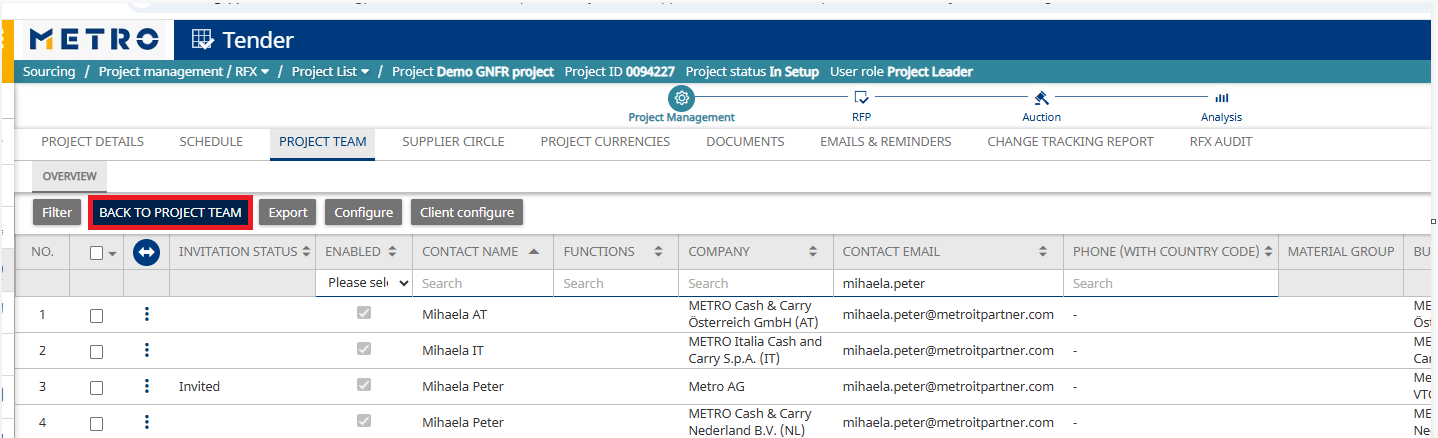
Click Back to Project Team to review invited users.
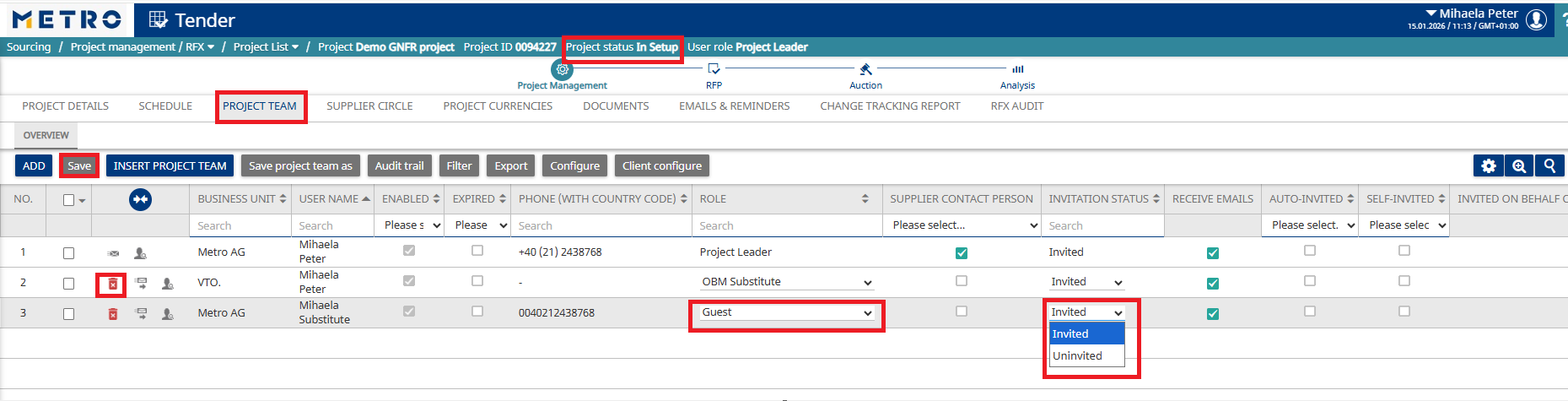
Important Notes:
- Roles can be changed anytime.
- Users can be invited anytime.
- Users can be deleted only if the project status is In Setup.
- If the project is no longer In Setup, set the invitation status to Uninvited to remove a user.
3. Invite Suppliers
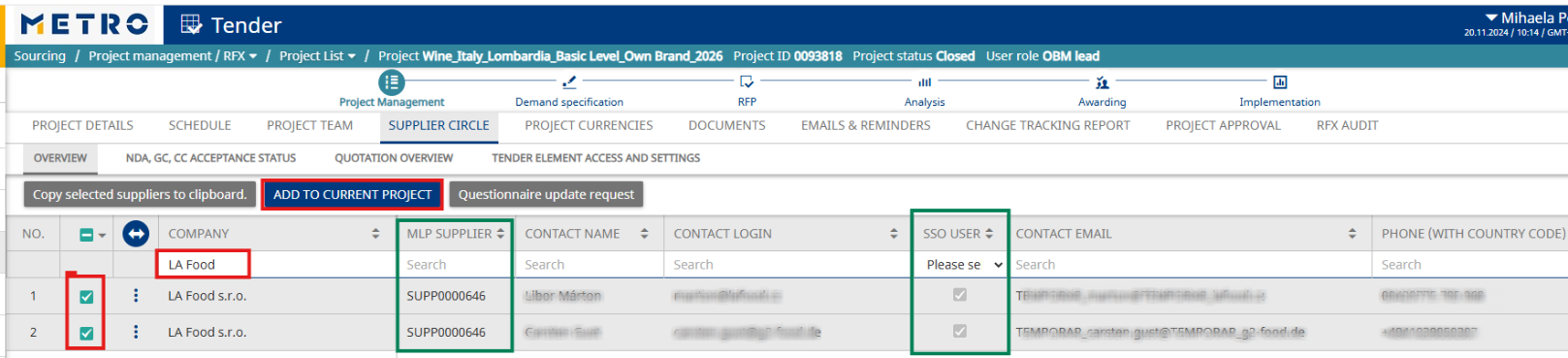
- Go to Supplier Circle and click Add.
- Search for the supplier (by company name, username, email, etc.), select them, and click Add to Current Project.

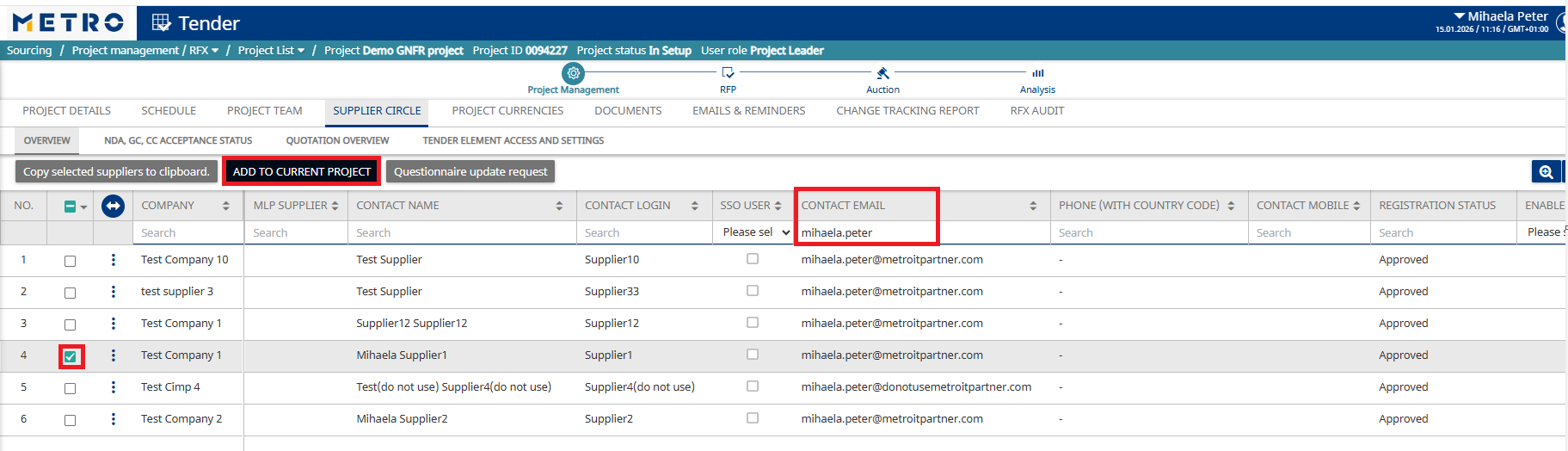
Onboarding Requirements:
- All invited suppliers must be onboarded via MLP.
- If the company is having an MLP Supplier ID, it is onboarded in Metro Link Plus
- If the user has an SSO flag, they have eSourcing access via Metro Link Plus.
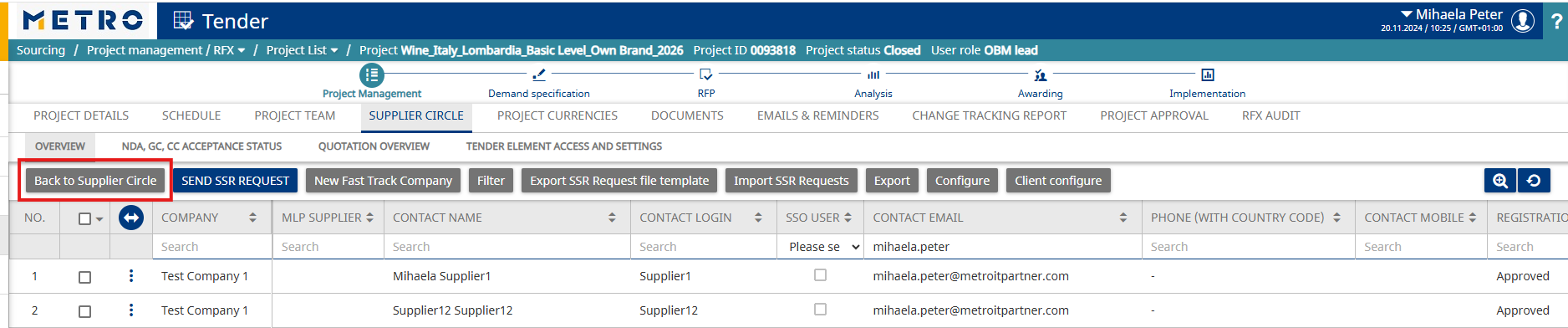
➡ See How to remove a supplier from the project if needed.
4. Upload Documents
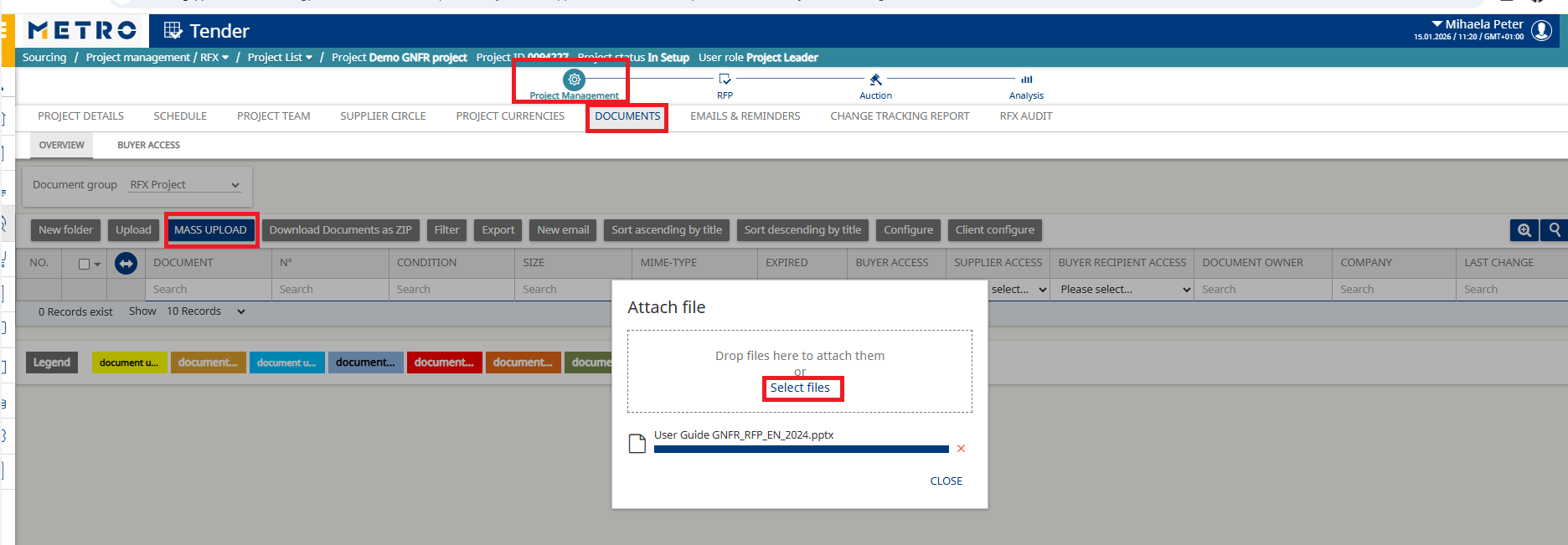
- Navigate to Documents and click Mass Upload to attach files for buyers and suppliers.
- Select files and wait for upload completion.
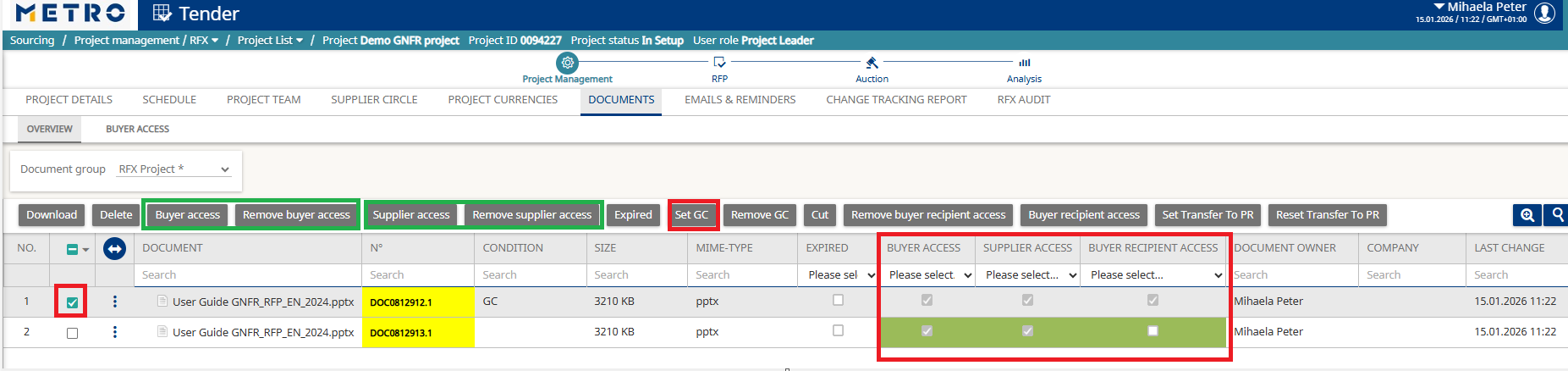
- Set access permissions for buyers and suppliers as needed.
- Before publishing the RFP, at least one document must be set as General Conditions (GC).
- To do this, select the document and click Set GC.
Important Notes:
- Documents must not be marked as Restricted before upload.
- GC documents cannot be replaced once the RFP grid is published.
- After the project is no longer In Setup, you can upload additional documents and adjust access, but you cannot delete documents.
5. Create the RFP grid
- To set up the RFP grid, go to the RFP tab and select New Grid.

- Name Your Grid - Enter a clear and descriptive name for your grid.
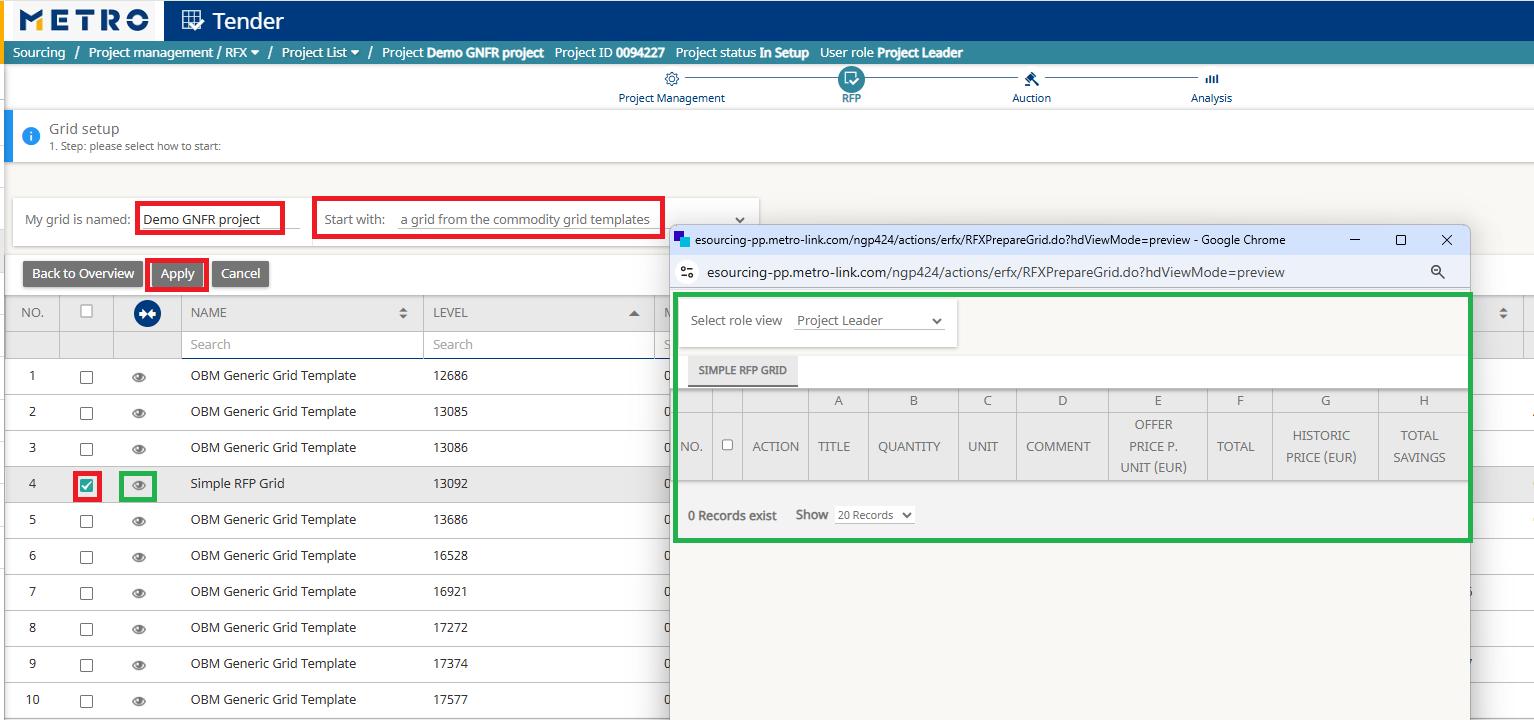
Option A — Use a Commodity Template
- Select Simple RFP Grid and click Apply.
- You can click the preview (eye) icon to review the template before applying it.
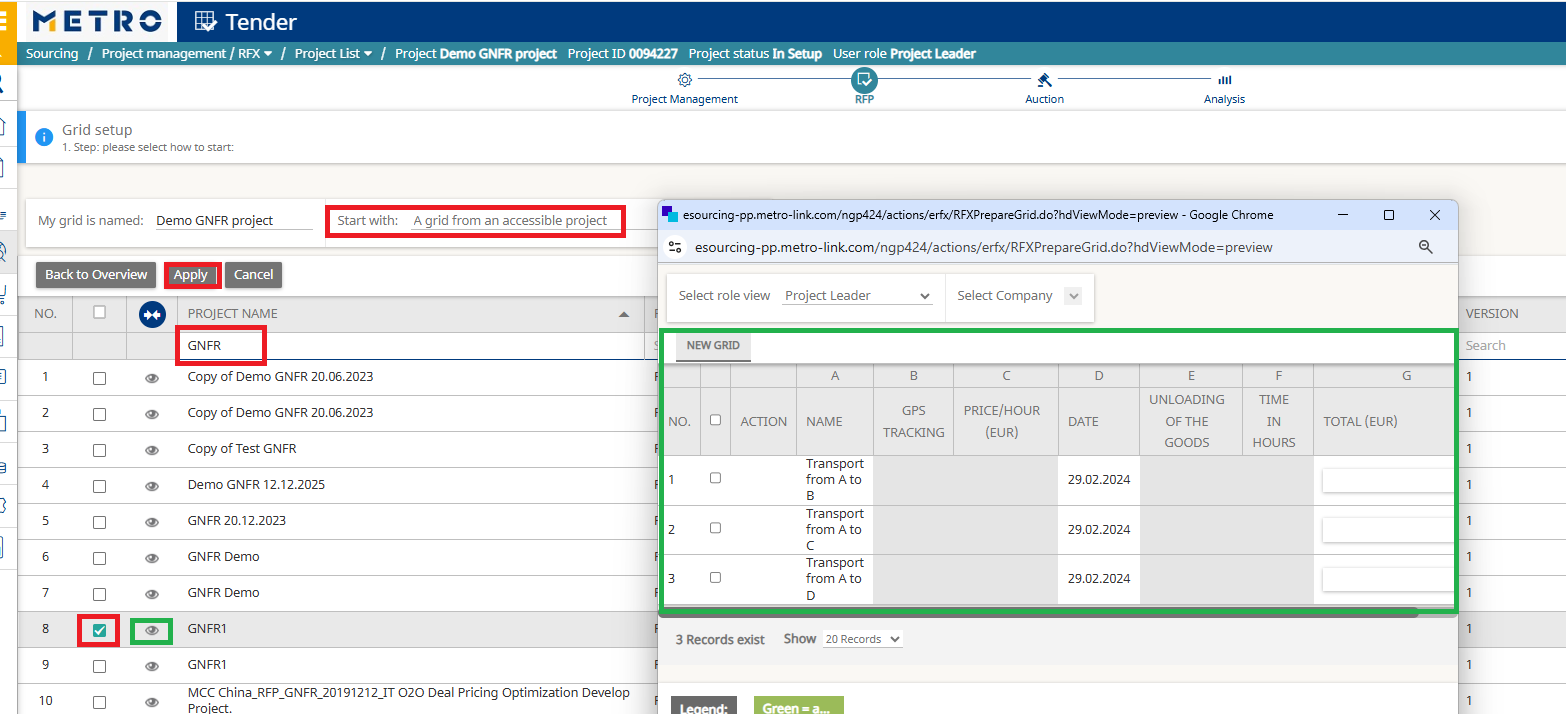
If a similar project was created before and you have access to it:
- Select an existing project’s grid as your starting point.
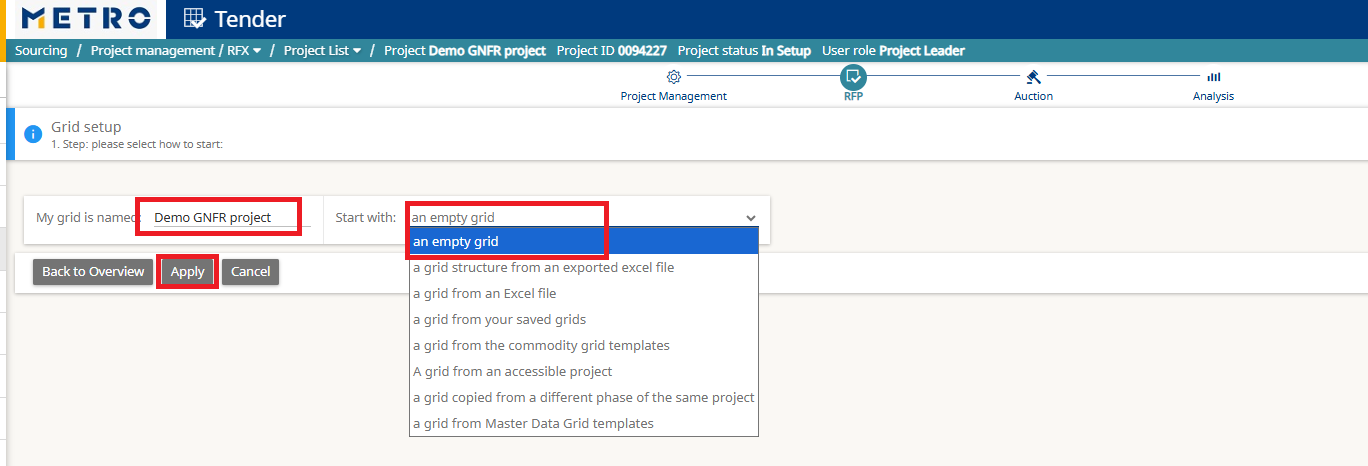
Option C — Start with an Empty Grid
- Choose Empty Grid to build the structure from scratch.
- You will be able to create, rename, and configure all columns manually.
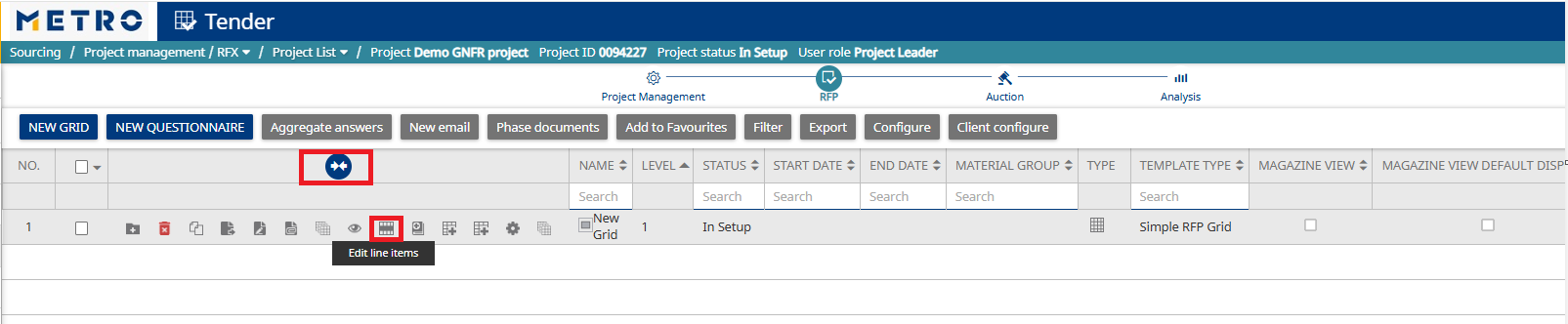
Click Edit Line Items to view the grid layout and confirm whether the existing columns meet your requirements.
If the predefined columns are suitable, proceed directly to Step 7 to create the rows.
If you need to adjust the structure—add new columns, modify existing ones, or delete columns—continue with Step 6.
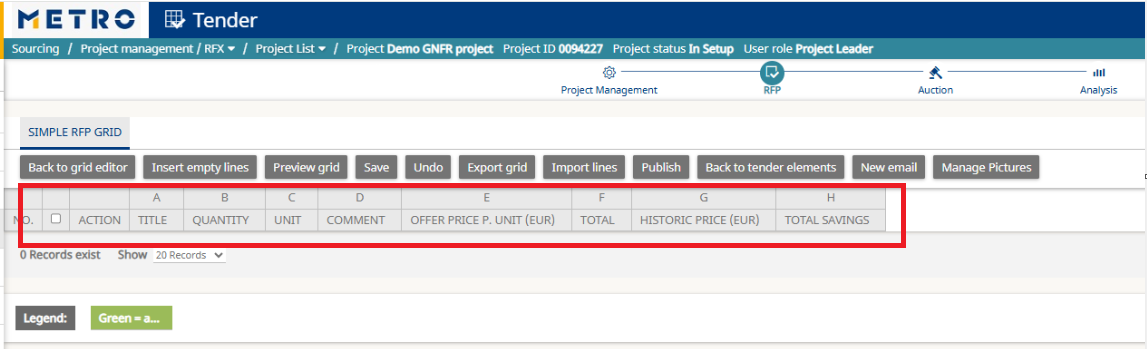
6. Edit the Grid
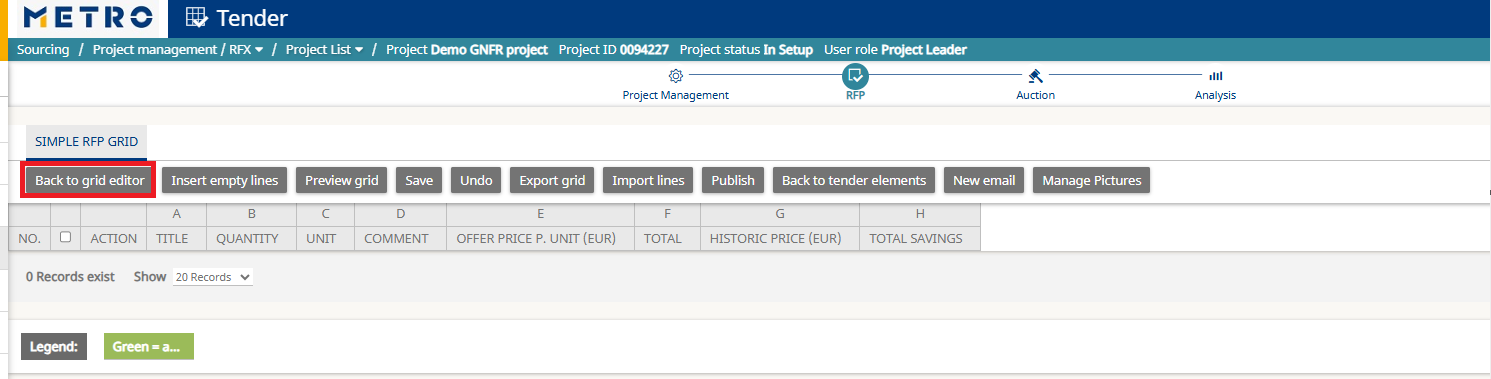
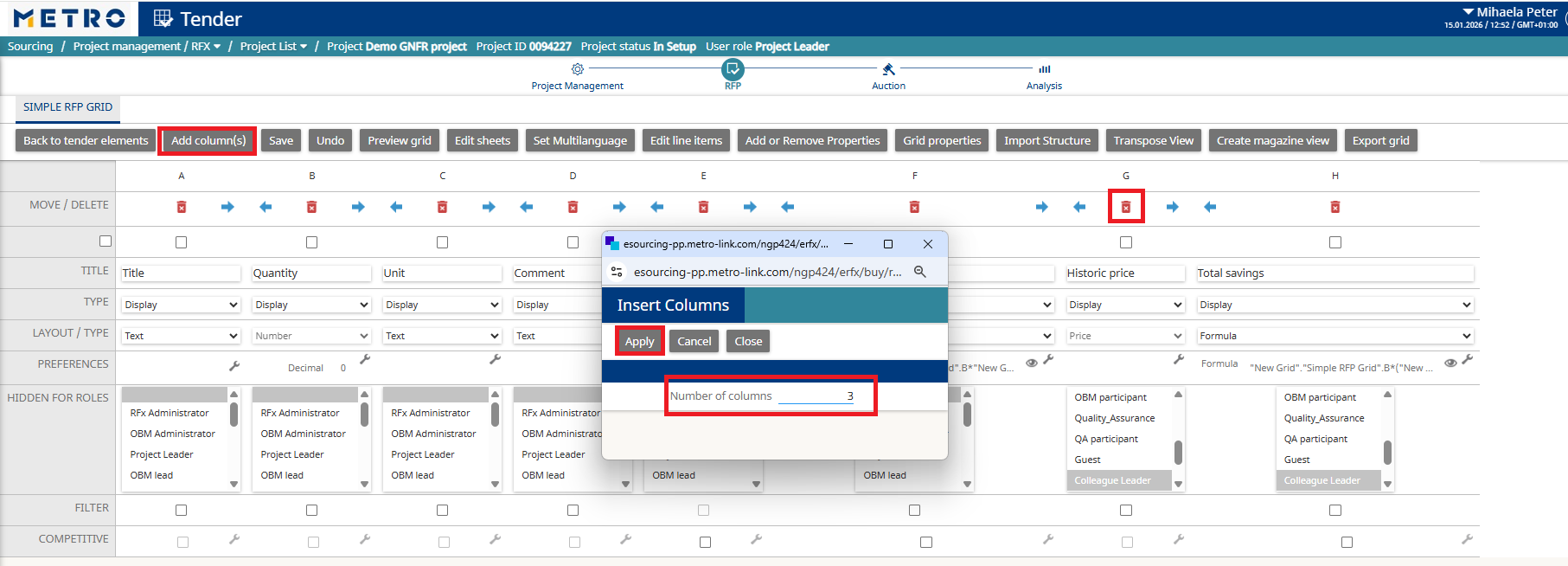
Add New Columns
- Click Add Columns.
- Enter the number of new columns you want to create.
- Click Apply.
- If needed, use the Delete button to remove unwanted columns.
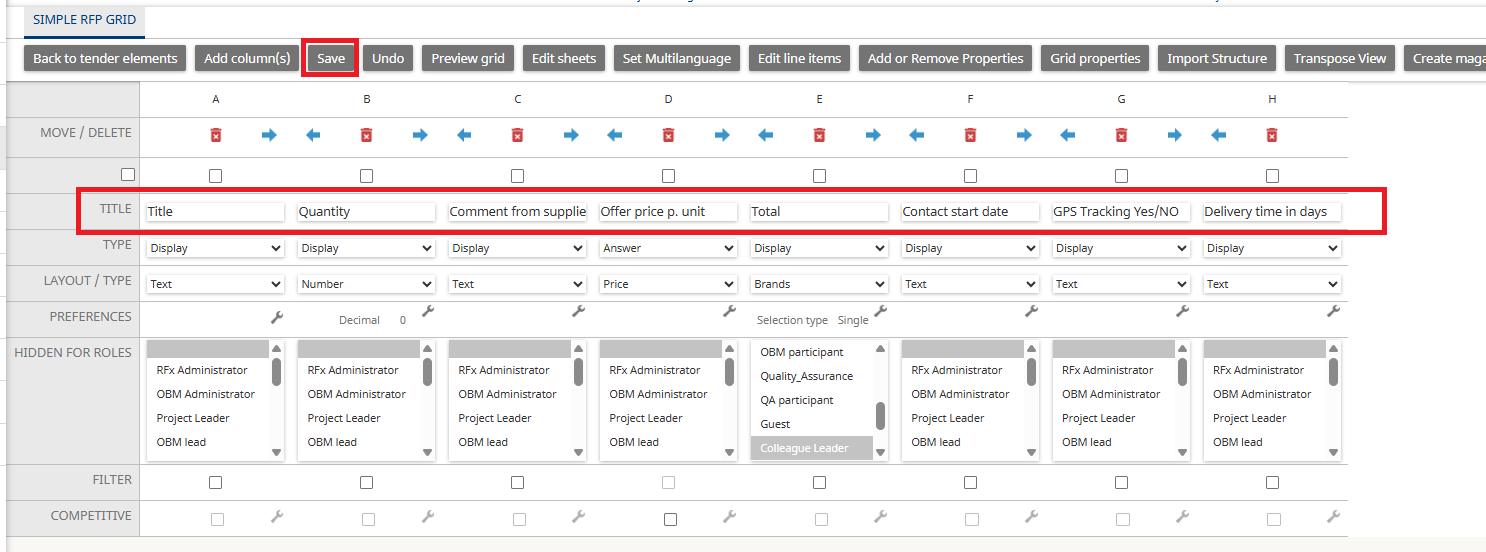
Define Column Titles
For each new column:
- Enter a clear and descriptive Title.
- Click Save.
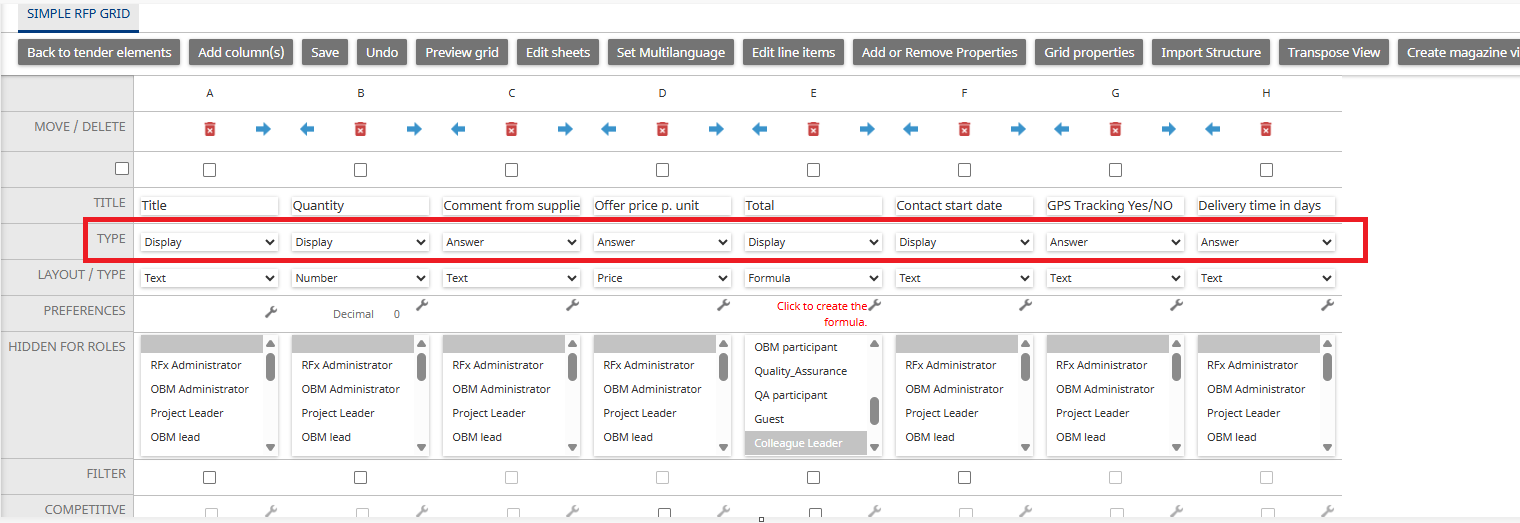
Set the Column Type
Each column must be assigned a Type:
Display — a value provided by the buyer
Examples: Product Name, Quantity, SpecificationAnswer — a value provided by the supplier
Examples: Price, Lead Time, Supplier Notes
Configure the Column Layout
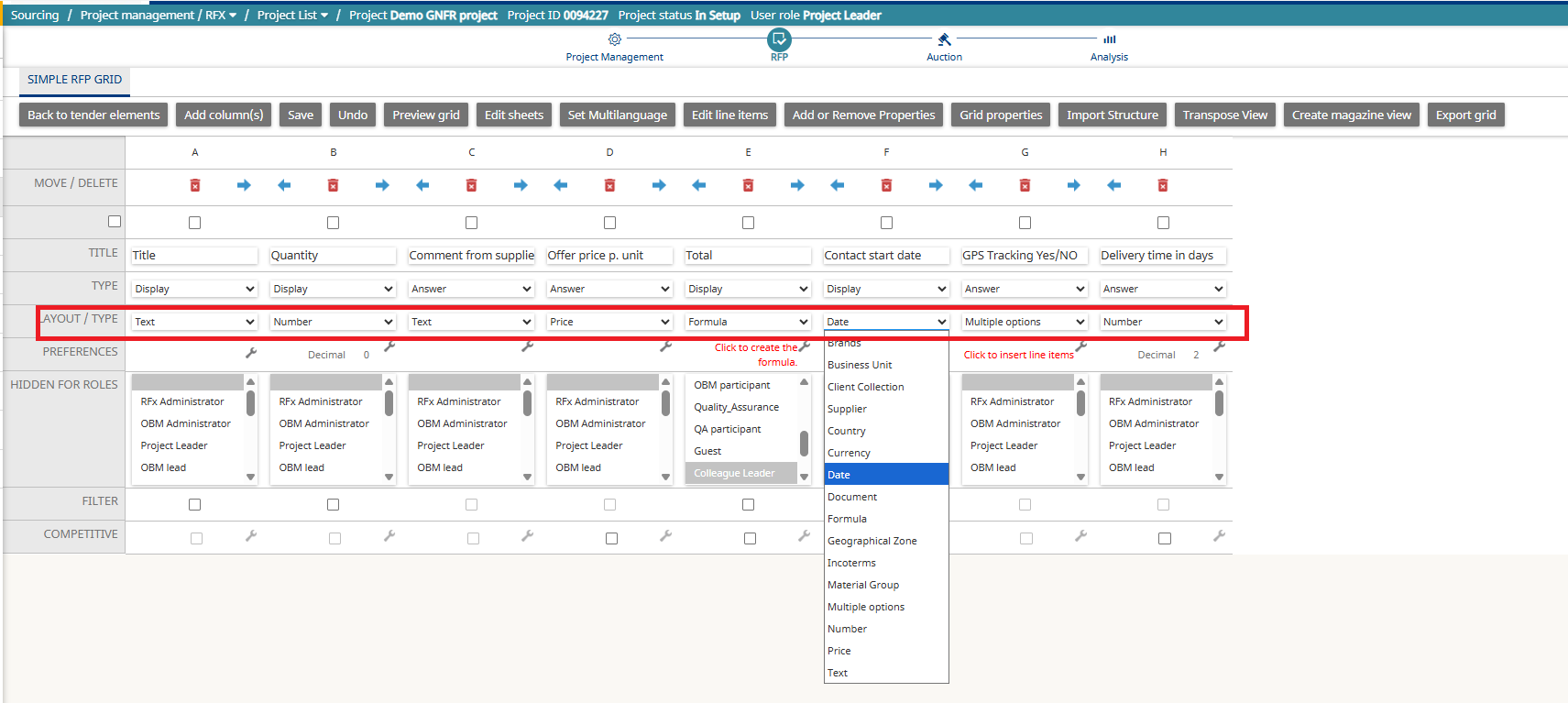
Based on the chosen Type, select the appropriate Layout.
Available layouts include:
- Text
- Number
- Price
- Formula
- Date
- Multiple Options
…and others depending on your configuration needs.
Special Column Configurations
Formula Columns
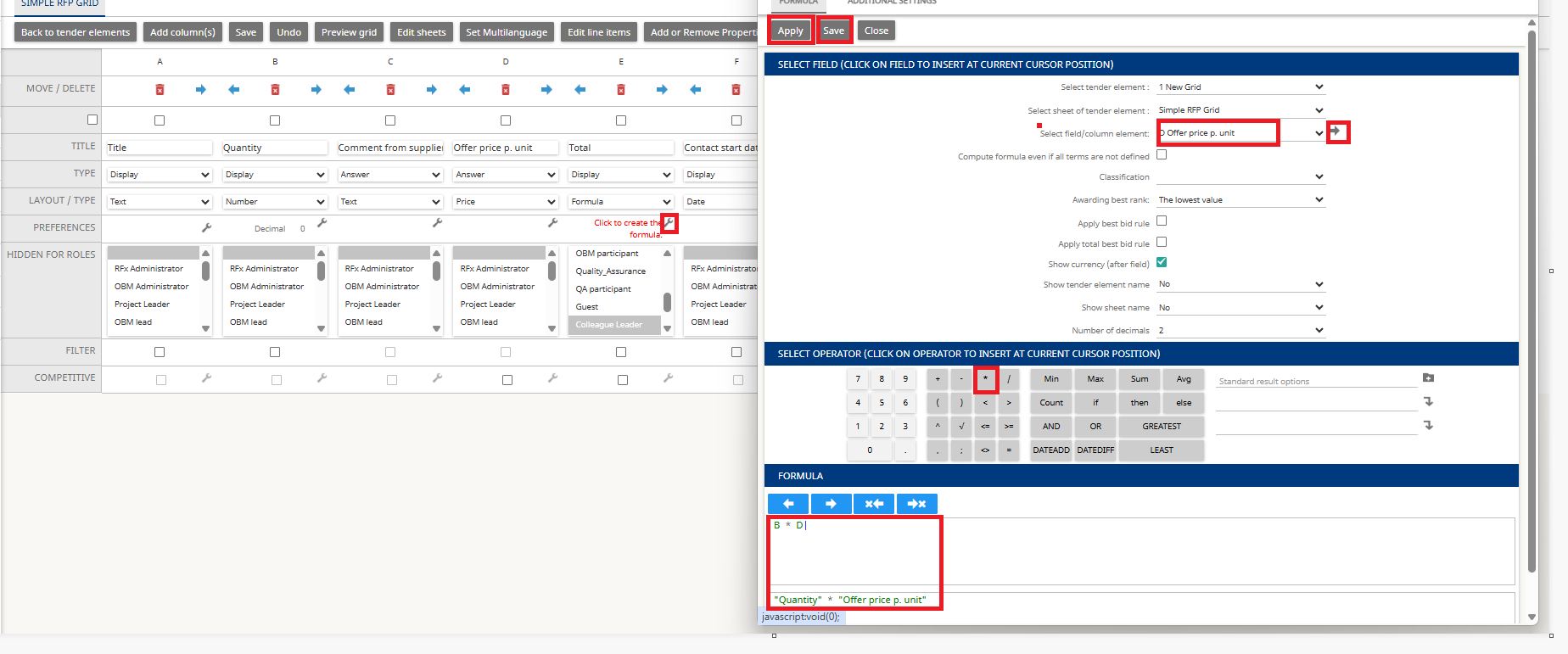
If you create a Formula type column:
- Click the Preferences (settings) icon.
- Build your formula by:
- Selecting a field/column from the Select field/column element list.
- Clicking the arrow to add it to the formula.
- Choosing the appropriate operators (e.g., +, -, ×, ÷).
- Once complete, click Save and Apply.
Multiple Options Columns
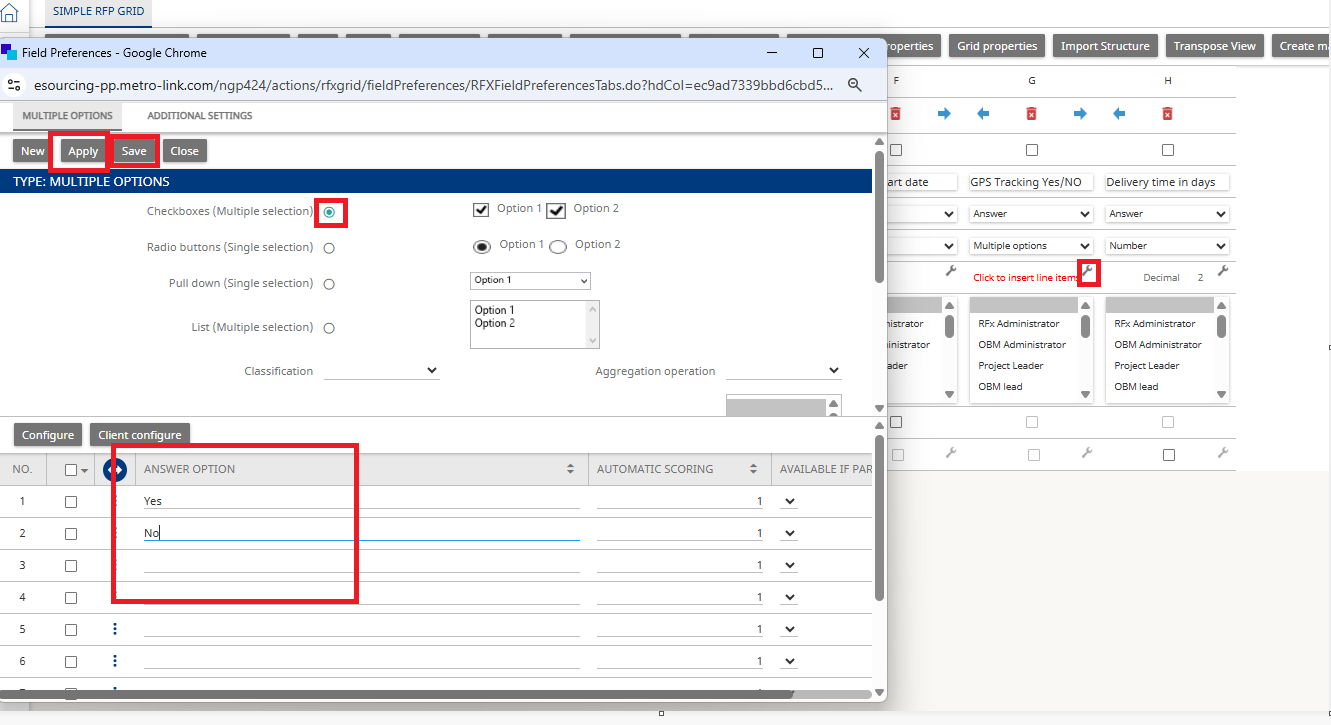
If you create a Multiple Options type column:
- Click the Preferences icon.
- Choose the Option Type (e.g., dropdown, single select, multi-select).
- Create the answer options suppliers can choose from.
- Click Save and Apply.
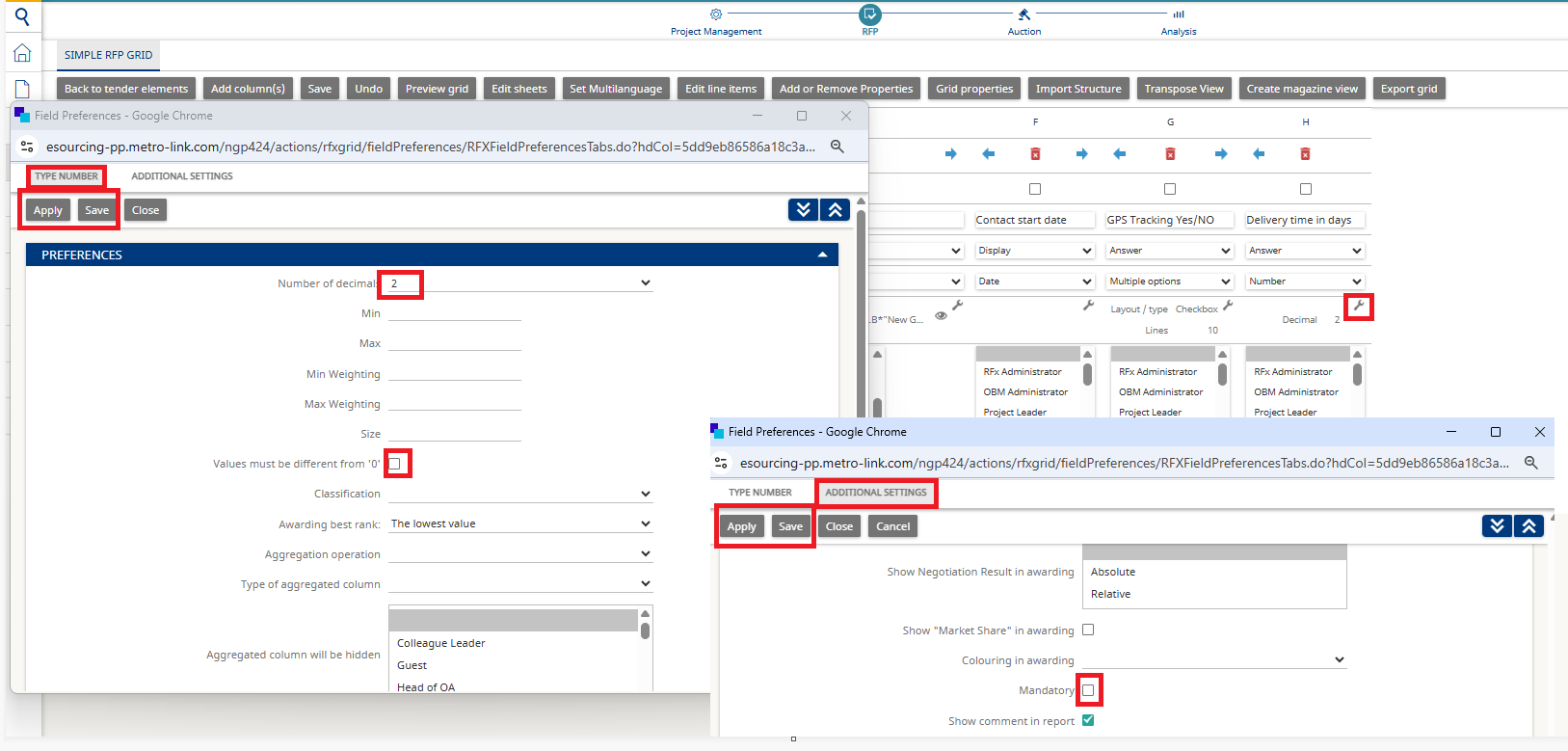
Other Column Settings
Click the Preferences (settings) icon on any column where you want to apply additional configuration.
Depending on the column layout and type, you can adjust settings such as:
- Number of decimals
- Deny “0” value
- Make the field mandatory
- Define minimum/maximum numeric values
After defining the settings, click Save and Apply.
Set Visibility Rules
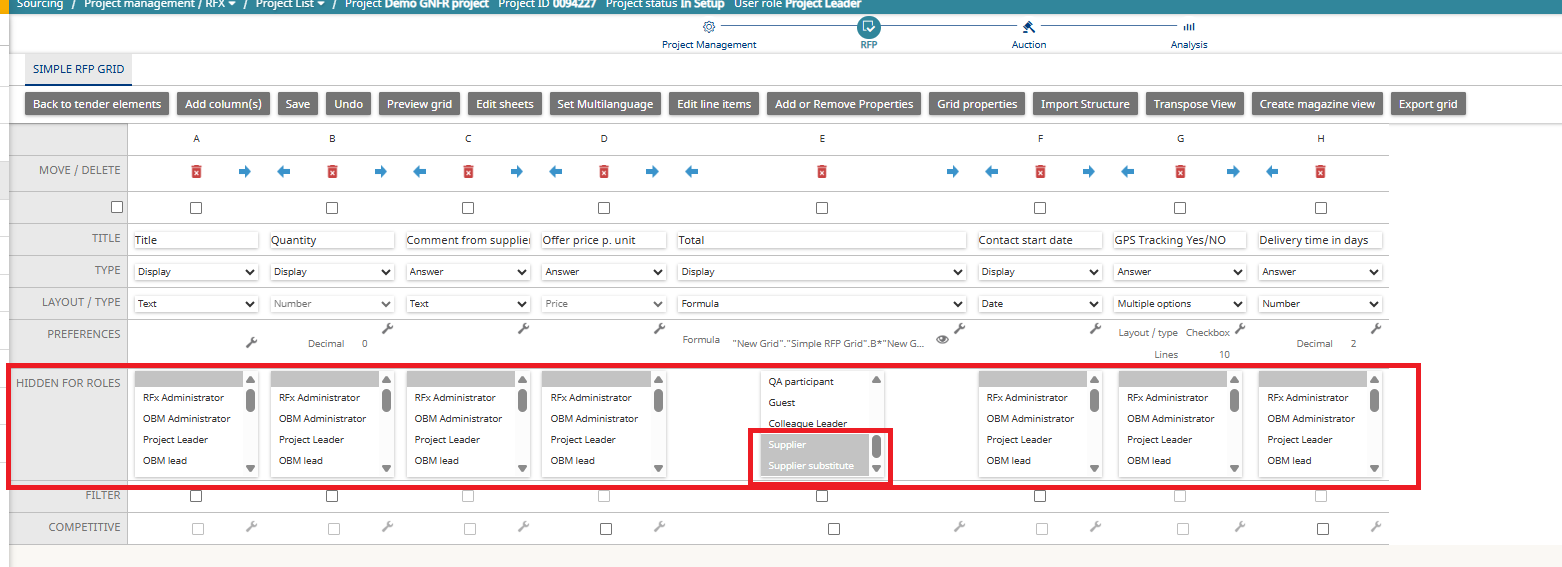
You can control which project roles can see or not see a specific column in the grid.
How to Hide a Column for Certain Roles
- Under Hidden for Roles, select the roles for which the column should be hidden.
- Click a role to toggle its visibility:
- Grey = the column is hidden for that role
- White = the column is visible for that role
- To select multiple roles at once, hold Ctrl on your keyboard while clicking.
Example
In the example below, the Total column is hidden for the Supplier role, meaning suppliers will not see it during the RFP.
Once all columns are defined and configured, click Edit Line Items to proceed to the next step.

7. Create the Line Items
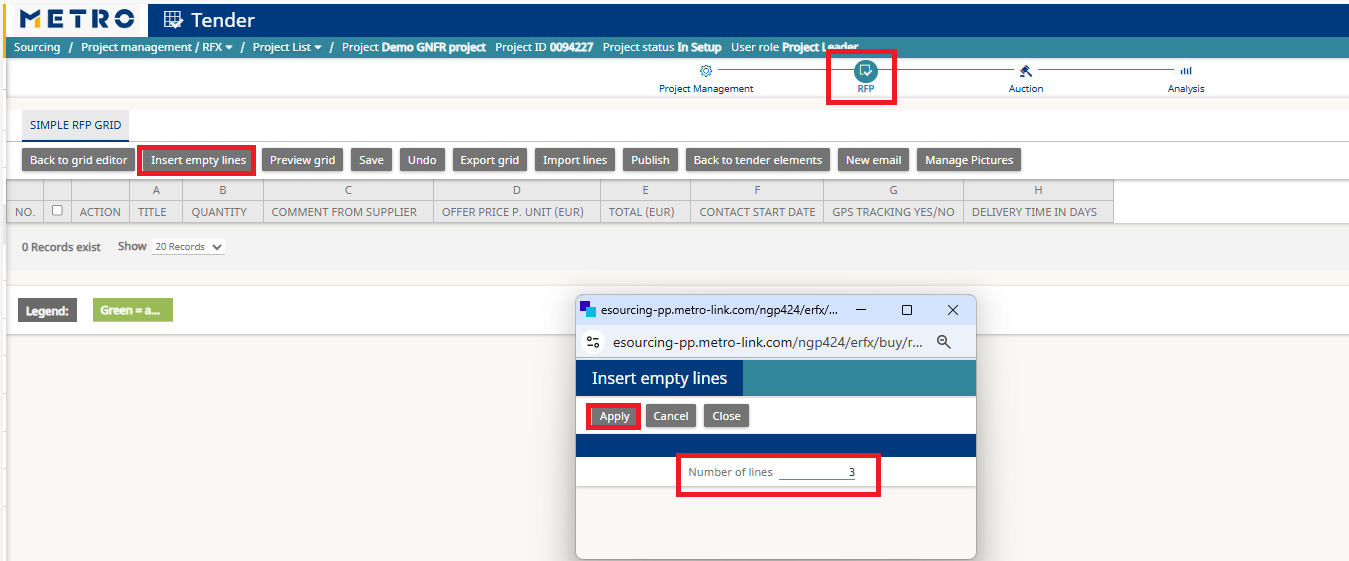
Insert New Line Items
- Click Insert Empty Lines to add new articles.
- Enter the number of lines you want to create.
- Click Apply.
Fill in Line Item Details
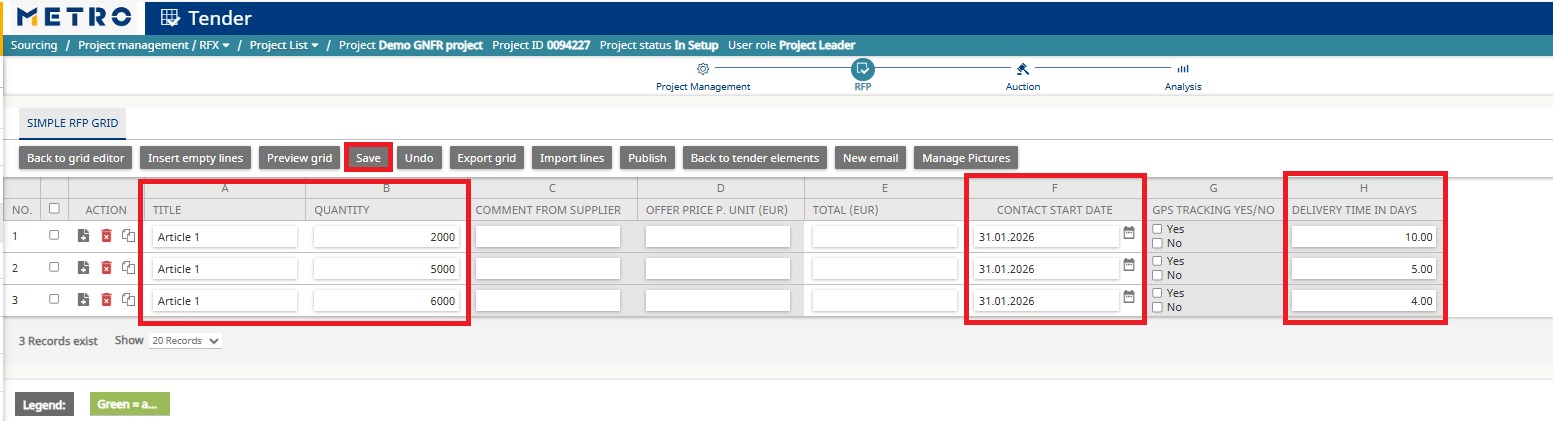
For each line:
- Enter the required information (e.g., item name, description, quantity, unit of measure).
- When finished, click Save.
Helpful Tips:
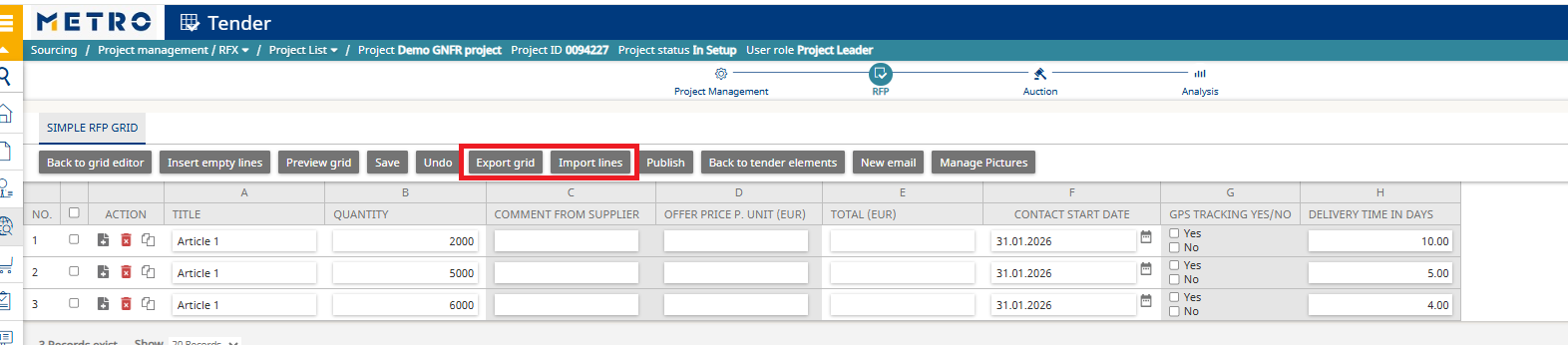
✔ Bulk Editing with Excel
- Click Export Grid to download the structure in Excel format.
- Fill out the file offline.
- Upload the completed file using Import Lines.
This is the fastest way to manage many items.
✔ Preview Supplier View
Use the Previewer to see how suppliers will view and respond to the RFP before publishing.


✔ Competitive RFP Options
You can enable competitive settings that allow suppliers to:
- See their ranking position, and/or
- View the best price after submitting their own bid
- Receive email notifications if their ranking changes
8. Publish the RFP
Once all project details, documents, and line items are finalized, you can publish the RFP so suppliers can begin submitting responses.
Start the Publishing Process
- Navigate to the RFP tab.
- Click the three dots or double arrow menu.
- Select Publish.

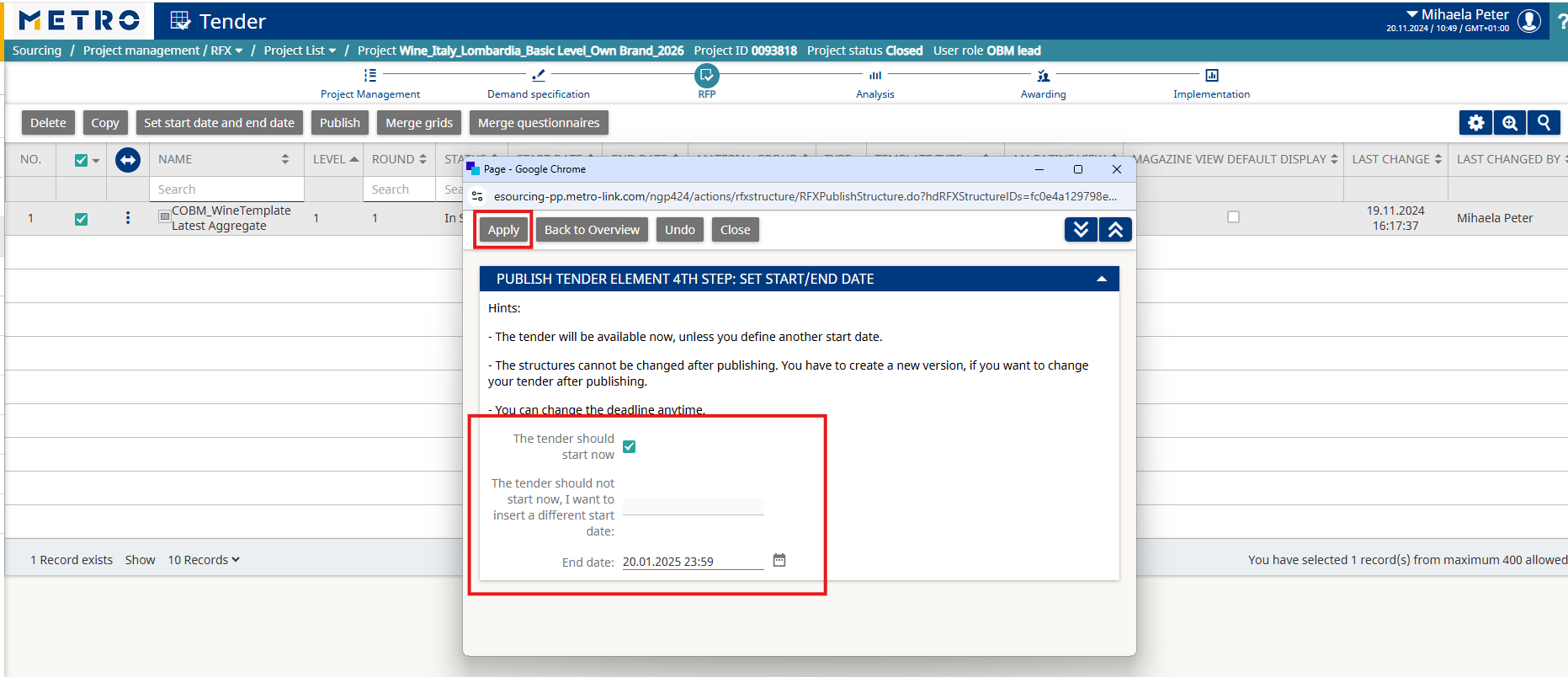
Set RFP Schedule
In the publication popup:
- Click Next
- Define the Start Date and End Date
- Click Apply
After Publishing
Once published:
- The project status changes to Online / Ready.
- All invited suppliers receive an email notification.
- Suppliers can now access and respond to the RFP.

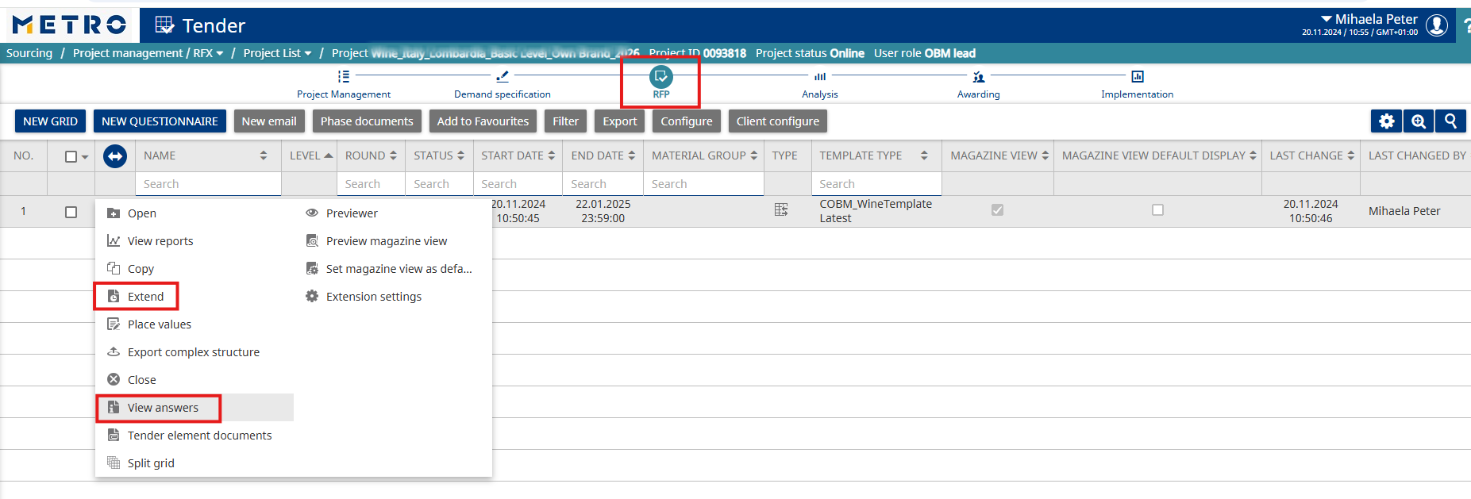
Additional Actions During the RFP :
- Use View Answers to check supplier responses.
- Use Extend to change the end date.
- After the end date, the RFP status changes to “In Analysis”, and suppliers will no longer be able to add or edit prices.
You can then:
- Optional: Continue negotiations by creating an Auction from this project
If you need further assistance do not hesitate to Contact us.